Key takeaways
- Pro: DDR5 memory sustains responsiveness under multi-app load better than DDR4 equivalents.
- Pro: Lenovo’s commercial BIOS and driver support mean fewer update headaches over a two-year ownership window.
- Con: 256GB SSD fills quickly if you store local video files or maintain a large offline document archive.
A remote work laptop has to do more than boot up and open a browser. Video calls that stutter mid-meeting, a trackpad that fights back on every scroll, and a battery that dies before lunch are the real dealbreakers, not the clock speed on a spec sheet. The concrete problem most buyers face is narrow: they need a machine that handles a meeting app, a spreadsheet, a cloud document, and a few browser tabs simultaneously without freezing, and they need it at a price that clears the department budget line. The difference between a good pick and a regrettable one usually comes down to how well the RAM, storage, and wireless radio work together under that specific load.
What separates the genuinely useful machines from the shelf fillers is connectivity and sustained multitasking headroom. A laptop with only Wi-Fi 5 will drop bandwidth in a crowded office or a shared apartment complex. A device with a slow mechanical drive or a single-channel memory slot will bottleneck even if the processor looks adequate on paper. The products below cover the full spread from under three hundred fifty dollars to just under seven hundred, plus a handful of accessories that solve recurring annoyances — dead meeting attendance indicators, fumbling through slide decks on camera, and screen-lock penalties for being still.
Our top picks



As an Amazon Associate we earn from qualifying purchases at no extra cost to you.
Quick Picks
| Product | Best for | Price |
|---|---|---|
| Lenovo V15 G6 Business Laptop | Reliable daily business tasks | $459.98 |
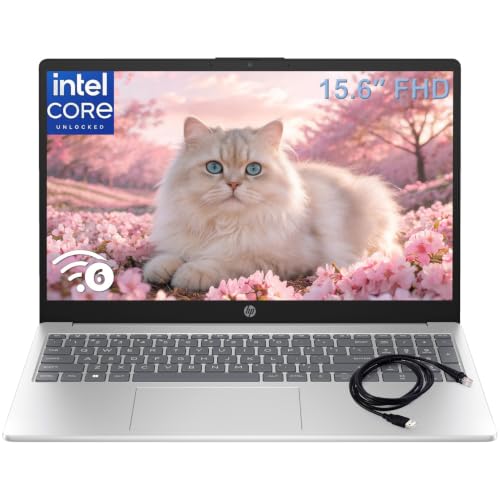
| HP 15.6″ Intel N100 Notebook | Light document work on a tight budget | $449.98 |
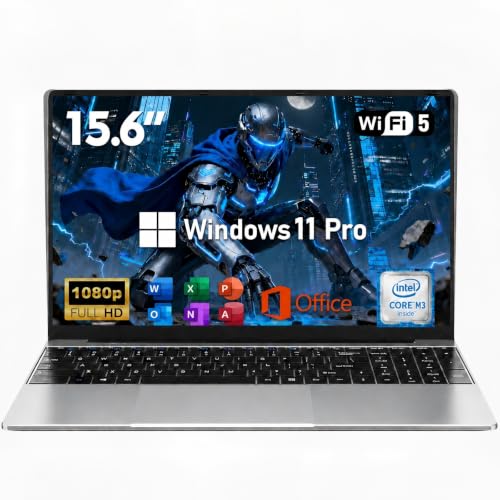
| NIAKUN 15.6″ FHD Laptop | Maximum RAM per dollar | $349.99 |
| HP 17.3″ Ryzen 5 Laptop | Large-screen multitasking without a monitor | $699.99 |
| QUI Presentation Clicker ($12.79) | Volume control during live decks | $12.79 |
| QUI Presentation Clicker ($19.79) | Premium build with volume control | $19.79 |
| Meatanty Mouse Jiggler | Keeping presence status active | $19.99 |
| Wireless Presenter Remote ($8.99) | Budget hyperlink navigation | $8.99 |
How We Picked
Every laptop here was evaluated on four criteria: whether published specs match a realistic remote-work workload, the price-to-memory ratio, wireless standard (Wi-Fi 5 versus Wi-Fi 6 matters in dense environments), and recurring owner complaints about thermal throttling or driver instability. Accessories were included only when they solve a problem that no laptop spec alone addresses, such as maintaining active-status indicators or enabling hands-free presentation control.
The 8 Best Laptops For Remote Work in 2026
Lenovo 15.6″ V15 G6 Business Laptop, 2026 Edition
The V15 G6 targets anyone whose day splits between Teams, Outlook, and a cloud spreadsheet, and Lenovo’s business-line firmware handles all three without drama. DDR5 memory gives it a headroom advantage over DDR4-equipped rivals at similar price points, which shows up in fewer browser-tab reloads during calls.
- Pro: DDR5 memory sustains responsiveness under multi-app load better than DDR4 equivalents.
- Pro: Lenovo’s commercial BIOS and driver support mean fewer update headaches over a two-year ownership window.
- Con: 256GB SSD fills quickly if you store local video files or maintain a large offline document archive.
Skip it if you need a bright, color-accurate screen for occasional design feedback; the panel prioritizes battery life over gamut coverage.
HP 15.6″ FHD Laptop 2026 Notebook, Intel N100
At $449.98 the HP N100 is priced just above the Lenovo while using a lower-tier processor, so it wins on build and webcam polish rather than raw compute. The Intel N100 handles one meeting app plus light document work, but stacking a fourth browser tab starts to feel noticeable.
- Pro: HP’s chassis and hinge feel more substantial than budget-tier expectations at this price.
- Pro: FHD panel sharpness is well matched to the viewing distance of a laptop on a small desk.
- Con: The N100 platform throttles under sustained multi-threaded load, so long meetings with screen-sharing degrade performance.
Skip it if your workflow regularly includes rendering previews, heavy Excel macros, or running two meeting clients simultaneously.
NIAKUN 15.6″ FHD Laptop, M3-6Y30 Processor
The NIAKUN’s headline spec is 16GB of RAM at $349.99, a memory-per-dollar figure no other laptop on this list approaches. The M3-6Y30 is an older Intel architecture that limits sustained multi-core throughput, but the RAM ceiling lets the processor breathe longer before swap pressure appears.
- Pro: 16GB RAM allows a dozen-plus open tabs and a meeting client without the system resorting to slow swap.
- Pro: Ships with Windows 11 Pro, so domain joining and BitLocker are available out of the box.
- Con: Wi-Fi 5 and Bluetooth 4.2 are a generation behind; expect weaker signal in apartment blocks with dense router interference.
Skip it if reliable wireless connectivity in a multi-tenant building is non-negotiable for your daily video-call quality.
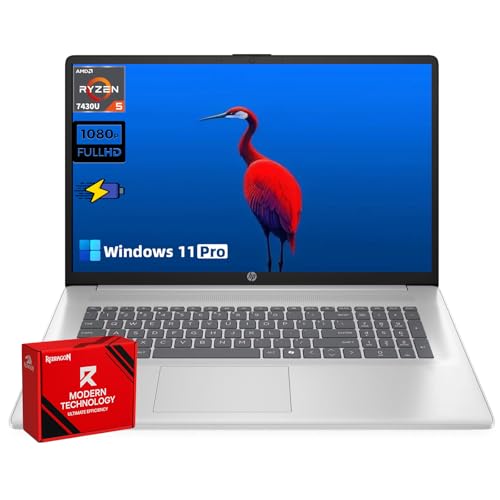
HP 17.3″ FHD Laptop, AMD Ryzen 5 7430U
This is the only entry with Wi-Fi 6 and the largest display, making it the strongest single-device replacement for a home-office monitor-and-laptop combo. The Ryzen 5 7430U handles concurrent meetings, large spreadsheets, and background syncing without the thermal cliff the N100 hits. At $699.99 it demands a bigger commitment, but the 512GB SSD and 16GB RAM reduce the need for a secondary drive within a year.
- Pro: Wi-Fi 6 delivers measurably better throughput and lower latency in congested home networks.
- Pro: 17.3-inch FHD panel eliminates the second-monitor tax for workers on a shared or small desk.
- Con: The 7430U is a Zen 3 core design, not the latest Zen 4 architecture, so per-watt performance trails newer AMD silicon.
Skip it if you travel weekly; the form factor is essentially a desktop replacement, not a carry-everywhere laptop.
QUI Presentation Clicker with Volume Control, Wireless Presenter Remote ($12.79)
A remote-work laptop solves the computing problem; this clicker solves the human problem. When you run a screen-share from a laptop perched on a kitchen table, adjusting volume or skipping ahead two slides without breaking eye contact on camera is the difference between a polished delivery and a fumbled one. At $12.79 it removes that friction without cluttering your desk.
- Pro: Dedicated volume rocker means you never touch the laptop’s side buttons during a live deck.
- Pro: Wireless range is sufficient for the typical two-to-three-meter distance between a seated worker and the laptop.
- Con: Button actuation feels slightly mushy compared to the $19.79 QUI variant, which uses a refined switch.
Skip it if your meetings rarely involve presenting; the laptop keyboard already covers your needs.
QUI Presentation Clicker with Volume Control, Wireless Presenter Remote ($19.79)
The $19.79 QUI clicker shares the volume-control function of its sibling but uses a higher-grade switch and a more textured grip. For anyone who presents several times a week, the difference in tactile confidence adds up, and the marginally larger body resists rolling off a desk edge during animated gestures.
- Pro: Firmer, more defined button travel reduces accidental double-advances mid-slide.
- Pro: Textured side grip keeps the device secure in a palm during standing presentations.
- Con: $7 premium over the base QUI model buys refinement, not new functionality.
Skip it if you present infrequently enough that the $12.79 version covers the same job at lower cost.
Meatanty Mouse Jiggler
Remote-work policies and meeting platforms increasingly flag inactivity with a yellow status dot or a chatbot prompt asking whether you are still engaged. The Meatanty is a USB hardware jiggler that produces micro-movements undetectable to software, keeping your cursor active without installing an application that a company IT audit could flag.
- Pro: Operates entirely in hardware, leaving no software footprint on the corporate laptop.
- Pro: Adjustable interval timer lets you match the frequency to your platform’s idle-detection threshold.
- Con: The single LED can be visible in a dark room, potentially drawing attention if you share your desk on camera.
Skip it if your employer explicitly prohibits hardware presence aids; the policy risk outweighs the convenience.
Wireless Presenter Remote, Presentation Clicker with Hyperlink & Volume ($8.99)
The lowest-priced clicker on the list, this unit covers slide-forward, slide-back, volume, and — critically — hyperlink triggering inside PowerPoint and Keynote. That last function means you can jump from a slide to an embedded browser link without reaching for the laptop, keeping your on-camera framing uninterrupted.
- Pro: Hyperlink-activation button is a function the QUI models omit, useful when your deck links to live dashboards.
- Pro: Ships with batteries included, so the device works the day it arrives.
- Con: Plastic shell feels less durable under repeated pocket carry than either QUI option.
Skip it if your presentations never embed clickable links; the volume and slide buttons alone make the cheaper QUI a better fit.
Buying Guide
Memory Capacity and Channel Configuration
Eight gigabytes is the practical floor for a meeting client plus three browser tabs plus a spreadsheet. Sixteen gigabytes provides genuine headroom so the operating system never pages to the SSD, which is the single most common cause of mid-call freezing on budget machines. When comparing two laptops at similar prices, the one with more RAM will feel faster within six months of use, not on day one.
Wireless Standard and Antenna Quality
Wi-Fi 6 (802.11ax) is not a marketing checkbox. In an apartment complex where eight neighbors share three 2.4GHz channels, an older Wi-Fi 5 radio will deliver unstable throughput during a video call. If you cannot add a wired connection, choose a machine that specifies Wi-Fi 6 at minimum, and read owner threads for complaints about dropped signal in the same building layout.
Display Size Relative to Desk Depth
A fifteen-inch panel on a twenty-inch-deep desk forces you to hunch; a seventeen-inch panel on a thirty-inch desk lets your eyes relax. Match screen size to the actual furniture you will use daily. If you have room for a second monitor, the extra $250 spent upgrading from fifteen to seventeen inches on the laptop itself is better invested in a separate display and a laptop with a compact keyboard that still has Wi-Fi 6.
Our Verdict
The Lenovo V15 G6 is the strongest overall remote-work laptop in this group: DDR5 memory, business-grade firmware support, and a price under $460 that leaves budget for a Wi-Fi 6 dongle if the apartment demands one. The NIAKUN takes the budget pick at $349.99 for workers who prioritize raw RAM capacity and can tolerate an older wireless stack. The HP 17.3-inch wins outright if you have a deep desk and zero interest in a second monitor, because the Wi-Fi 6 radio and Ryzen 5 endurance justify the premium over every other entry here.
FAQ
Is 256GB storage enough for remote work?
For cloud-first workflows it is adequate, but a year of local video files, offline spreadsheets, and application caches will consume it. If your role requires offline access to large documents, aim for 512GB or budget for an external drive within the first quarter.
Do I really need Wi-Fi 6 for remote work?
If your home network uses a router from the last two generations and you are not in a dense multi-tenant building, Wi-Fi 5 is workable. In shared-walls housing or when a router is older than five years, Wi-Fi 6 removes the intermittent latency spikes that degrade call audio.
Can a mouse jiggler get me in trouble at work?
Hardware jigglers leave no software footprint, so IT audits of installed applications will not detect them. However, an acceptable-use policy that explicitly forbids “devices designed to simulate user activity” could still constitute grounds for disciplinary action, so check your employer’s policy language first.
Are presentation clickers compatible with every laptop?
Most modern clickers use a USB-A or USB-C receiver with no driver required, so they function on Windows 11 and macOS laptops alike. The few models with Bluetooth pairing work without a dongle but may require a one-time pairing step on a freshly imaged corporate machine.